Windows - Software - Uninstall HP Support Assistant
Remove HP Support Assistant and clean up residual services, files, and registry keys
Worklet Details
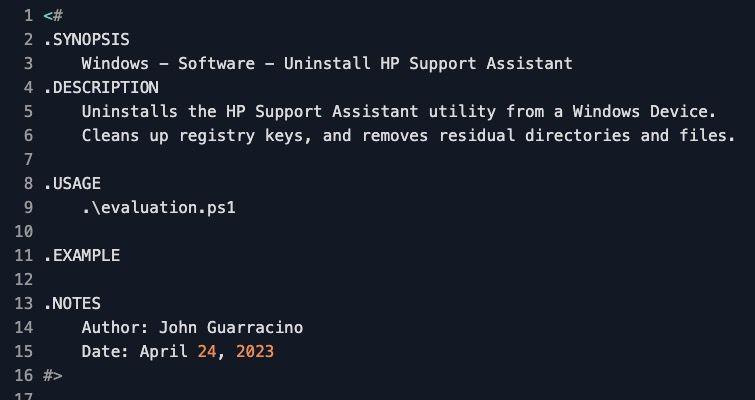
What the HP Support Assistant removal Worklet does
This Automox Worklet™ removes HP Support Assistant from Windows endpoints and cleans up the service, registry, and file artifacts the standard uninstaller leaves behind. HP Support Assistant ships preinstalled on most consumer and commercial HP laptops as a Microsoft Store (AppX) package, with the legacy HP Support Framework directory providing the underlying binaries. The Worklet detects the AppX package, stops associated services, runs the vendor's silent uninstaller, and sweeps residual directories so your fleet ends in a consistent, clean state.
Detection queries Win32_InstalledStoreProgram and filters for any package whose Name matches *HPSupportAssistant. If a match is found, remediation stops the four HP services (HPAppHelperCap, HPDiagsCap, HPNetworkCap, HPSysInfoCap), removes the HKLM:\SOFTWARE\WOW6432Node\HP\HPActiveSupport registry key, and runs UninstallHPSA.exe with /s /v /qn UninstallKeepPreferences=FALSE for a silent vendor uninstall. After the uninstaller exits, the Worklet sweeps C:\Program Files (x86)\HP\HP Support Framework\ and C:\ProgramData\HP\HP Support Framework\, using [IO.Directory]::Delete with recursive=true as a fallback when Remove-Item is blocked by an open handle on the HPSFMessenger9_3 resource directory.
Why remove HP Support Assistant from your fleet
HP Support Assistant has been the subject of repeated local privilege-escalation advisories. CVE-2019-6328 covers local privilege escalation in HP Support Assistant 8.7.50 and earlier. CVE-2020-6917 is a local privilege-escalation flaw in the HP Support Solutions Framework -- the same component installed under C:\Program Files (x86)\HP\HP Support Framework\. CVE-2022-38395 is a DLL hijacking elevation of privilege reachable when HPSA launches HP Performance Tune-up via the Fusion launcher. All three map back to the utility this Worklet removes. Because the component runs SYSTEM-level services on every HP endpoint it ships on, a single un-patched HPSA install on a developer laptop is a quiet path for a foothold to gain administrative privilege.
Scheduling this Worklet against your HP endpoint group walks each endpoint at evaluation time, stops the four HP services, calls UninstallHPSA.exe silently, and sweeps the residual directories that resist Remove-Item. The Automox activity log records exit codes and AppX package state, which forms an evidence trail against CVE-2019-6328, CVE-2020-6917, and CVE-2022-38395.
How HP Support Assistant removal works
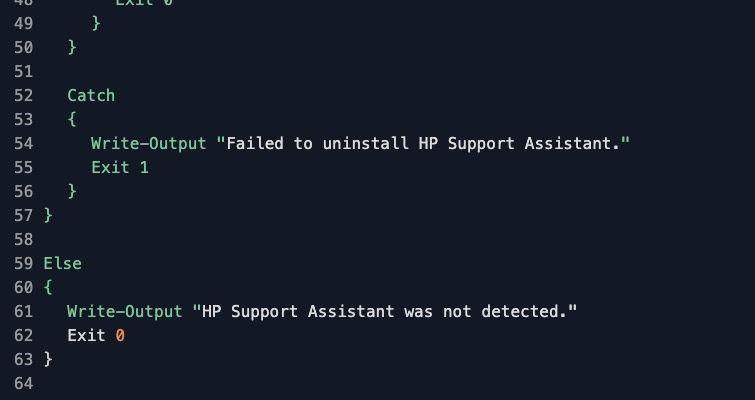
Evaluation phase: The Worklet queries Win32_InstalledStoreProgram and filters with Where-Object for any package whose Name matches *HPSupportAssistant. If a matching package is found, evaluation exits 1 and flags the endpoint for remediation; otherwise it exits 0 and the endpoint is marked compliant.
Remediation phase: Stop-Service halts HPAppHelperCap, HPDiagsCap, HPNetworkCap, and HPSysInfoCap with -Force -ErrorAction SilentlyContinue so a missing service does not abort the run. Remove-Item purges HKLM:\SOFTWARE\WOW6432Node\HP\HPActiveSupport. Start-Process then runs C:\Program Files (x86)\HP\HP Support Framework\UninstallHPSA.exe with /s /v /qn UninstallKeepPreferences=FALSE for a fully silent vendor uninstall. Residual cleanup removes C:\Program Files (x86)\HP\HP Support Framework\* and C:\ProgramData\HP\HP Support Framework\*, with [IO.Directory]::Delete used as a fallback when Remove-Item is blocked by an open handle on the HPSFMessenger9_3 resource directory. If the residual sweep fails, the Worklet exits 0 and surfaces a warning in the Automox activity log that some HP Support Assistant files may remain on the endpoint.
HP Support Assistant uninstall requirements
Windows 10 or Windows 11 endpoints, workstation or server SKU, x64 (HPSA ships on consumer and commercial HP hardware)
Local Administrator or SYSTEM rights so Stop-Service, Remove-Item on HKLM, and the UninstallHPSA.exe silent invocation all succeed; the Automox agent runs as SYSTEM by default and already meets this requirement
PowerShell 5.1 or later for Get-CimInstance Win32_InstalledStoreProgram (the class is present on all supported Windows 10 and 11 builds)
UninstallHPSA.exe present at C:\Program Files (x86)\HP\HP Support Framework\ on endpoints with the legacy framework install; endpoints where the exe is absent will catch the inner exception and exit 0 with a warning
No concurrent end user HPSA repair flow; the Worklet handles the HPSFMessenger9_3 open handle through .NET, but a user-driven repair running at the same time can hold C:\ProgramData\HP open
Expected state after HP Support Assistant removal
Get-CimInstance Win32_InstalledStoreProgram | Where-Object Name -like '*HPSupportAssistant' returns nothing on the endpoint. The HP Support Assistant tile is absent from the Start menu, the tray icon is gone, and the HP Support Framework entry is removed from Programs and Features. The four services (HPAppHelperCap, HPDiagsCap, HPNetworkCap, HPSysInfoCap) no longer appear in Get-Service output, and the registry key HKLM:\SOFTWARE\WOW6432Node\HP\HPActiveSupport is gone.
A subsequent Automox policy run reports the endpoint compliant without firing remediation again, because the evaluation phase no longer matches the AppX package. If your fleet image refreshes from an HP recovery partition or a feature update reintroduces HPSA, the recurring policy retires the component again on the next evaluation cycle without further admin action.
Loading...
Consider Worklets your easy button
What's a Worklet?
A Worklet is an automation script, written in Bash or PowerShell, designed for seamless execution on endpoints – at scale – within the Automox platform. Worklets deploy named-CVE mitigations within hours of disclosure, perform configuration, remediation, and install or remove applications and settings across Windows, macOS, and Linux.

AUTOMOX + WORKLETS™
Supercharge your endpoint management
Uncover new possibilities with simple, powerful automation.
By submitting this form you agree to our Master Services Agreement and Privacy Policy