Windows - Enterprise Branding - Set Login Screen Legal Notice Text
Enforce Windows login screen legal notice caption and text via registry to meet CIS 2.3.7.5 and 2.3.7.6
Worklet Details
What the Windows login banner enforcer does
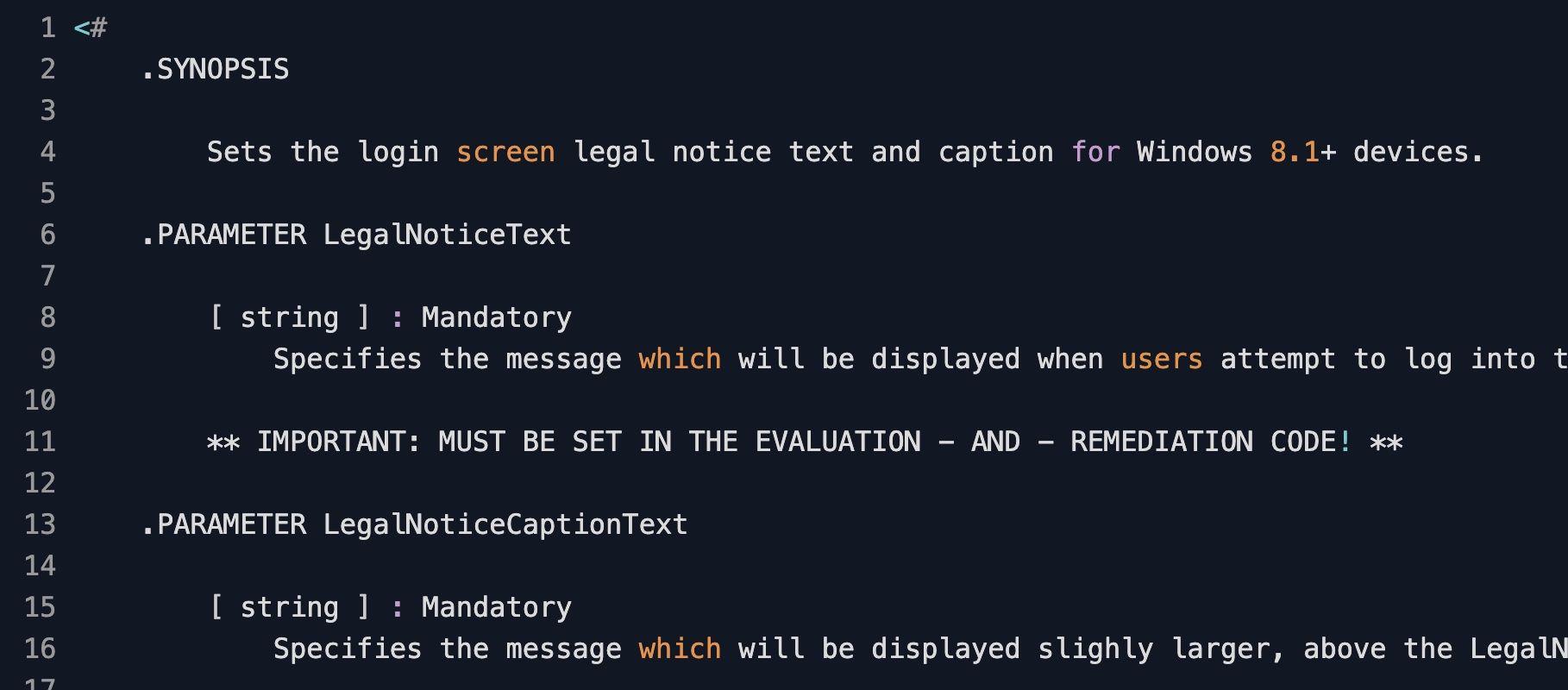
This Automox Worklet™ enforces the legal notice caption and legal notice text that Windows shows on the interactive login screen before any user enters credentials. The Worklet writes two registry values under HKLM:\SOFTWARE\Microsoft\Windows\CurrentVersion\Policies\System: LegalNoticeCaption, which renders as the larger header line, and LegalNoticeText, which renders as the message body below it.
The evaluation phase calls Test-Path on the policy key, then uses Get-ItemProperty to read both values and compare them against the strings you set in the Worklet parameters. Any drift, blank value, or missing property fails the check and triggers remediation. The remediation phase creates the key with New-Item if it is absent, then writes both properties with New-ItemProperty using the Force flag so any pre-existing value is overwritten cleanly.
The Worklet runs against Windows 8.1, Windows 10, Windows 11, and Windows Server endpoints. The banner appears at every interactive logon: console sign-in, lock-screen unlock, and Remote Desktop sessions that present the Windows credential prompt. Once configured, the banner is the same wording on every endpoint in scope, so legal and audit teams have one source of truth instead of per-machine variants drifting over time.
Why enforce a login banner for compliance
A login banner is one of the cheapest compliance controls to fail. CIS Microsoft Windows Benchmark control 2.3.7.5 requires an Interactive logon message title for users, and control 2.3.7.6 requires an Interactive logon message text for users. NIST 800-53 control AC-8 (System Use Notification) mandates a system use notification that users acknowledge before access. PCI-DSS, HIPAA, and SOC 2 audits commonly reference the same notification language. The wording matters less to the auditor than the proof that every endpoint shows it, every time, without exception.
The two banner values live under HKLM:\SOFTWARE\Microsoft\Windows\CurrentVersion\Policies\System. A reimage drops them, a Group Policy refactor can rewrite them with empty strings when the GPO link is detached, and an admin clearing the key during a logon-script troubleshooting session leaves the banner silently blank until the next audit. The Worklet reads LegalNoticeCaption and LegalNoticeText on every evaluation, compares them byte for byte against the configured strings, and rewrites the REG_SZ values when they diverge.
How Windows login banner enforcement works
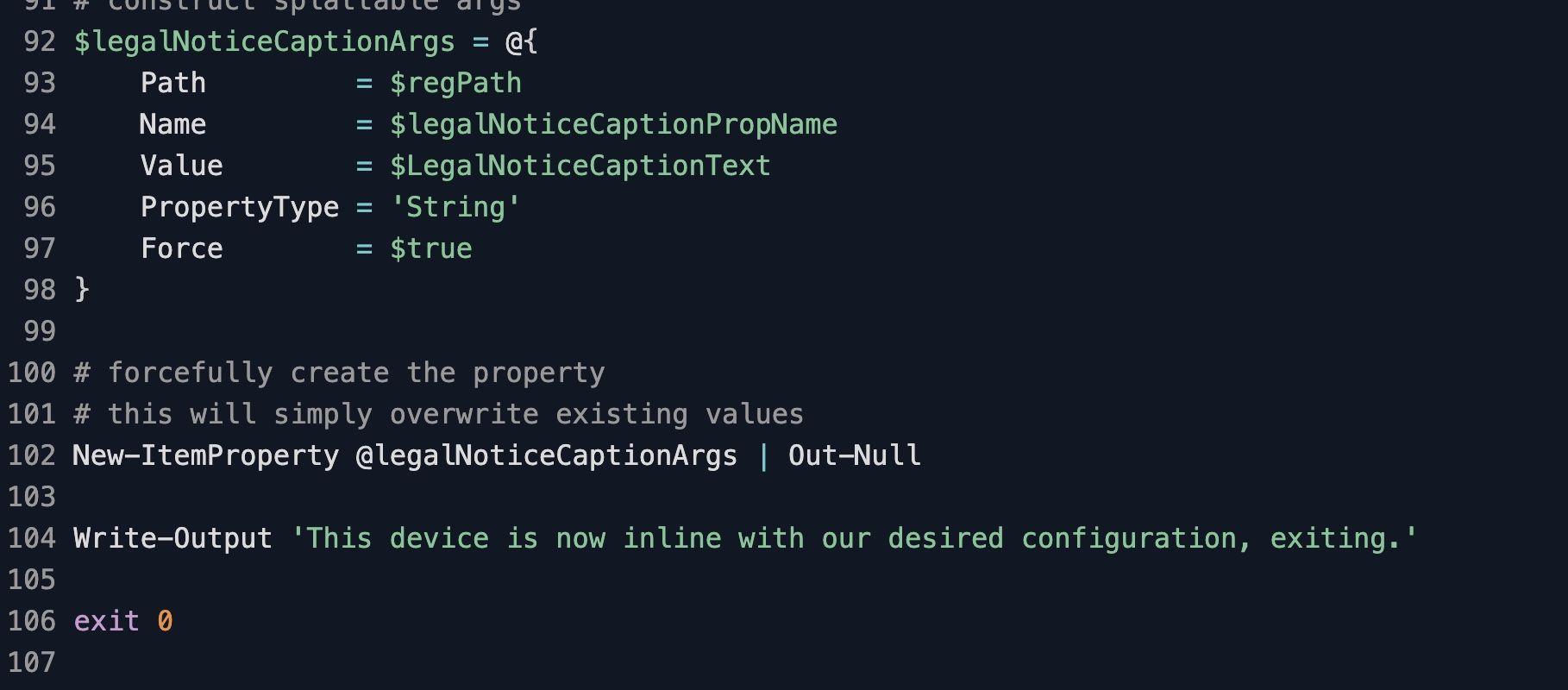
Evaluation phase: The Worklet runs Test-Path on HKLM:\SOFTWARE\Microsoft\Windows\CurrentVersion\Policies\System and exits non-compliant with exit code 1 if the key does not exist. It then reads LegalNoticeText with Get-ItemProperty and compares the value to the configured $LegalNoticeText string; any mismatch, null, or empty value fails the check. The same comparison runs for LegalNoticeCaption against $LegalNoticeCaptionText. A fully compliant endpoint emits the message "This device is inline with our desired configuration, exiting." and exits 0.
Remediation phase: The remediation script recreates the policy key with New-Item -Force when missing, then writes both registry values with splatted New-ItemProperty calls (PropertyType String, Force true) so existing values are overwritten in place. The Force flag is what makes the run idempotent: re-running on an already-compliant endpoint produces the same end state without errors. The new banner takes effect on the next interactive logon; no reboot or sign-out of currently active sessions is required.
Login banner enforcement requirements
Windows 8.1, Windows 10, Windows 11, or Windows Server (workstation or server SKUs)
Automox agent running in its default SYSTEM context, which has write access to HKLM:\SOFTWARE\Microsoft\Windows\CurrentVersion\Policies\System
PowerShell execution policy that allows the Automox agent to run scripts (RemoteSigned or Unrestricted on legacy hosts; the agent host context normally handles this)
Update the $LegalNoticeText and $LegalNoticeCaptionText here-string variables in both evaluation.ps1 and remediation.ps1 with your approved caption (header line) and message body (legal disclaimer text) before publishing the policy
Keep evaluation.ps1 and remediation.ps1 in sync; if the two strings differ between scripts, the endpoint will fail evaluation immediately after remediation and remediate again on every run
No conflicting Group Policy Object writing the same LegalNoticeCaption or LegalNoticeText values; GPO refresh will overwrite the Worklet's changes if a domain policy is also setting these keys
Expected state after login banner enforcement
After a successful remediation run, HKLM:\SOFTWARE\Microsoft\Windows\CurrentVersion\Policies\System\LegalNoticeCaption and HKLM:\SOFTWARE\Microsoft\Windows\CurrentVersion\Policies\System\LegalNoticeText contain the exact strings you configured in the Worklet parameters, both as REG_SZ values. The remediation script exits 0 with the message "This device is now inline with our desired configuration, exiting." in the Automox activity log. The next interactive logon on the endpoint shows the caption as a header and the message body underneath, with an OK button the user must acknowledge before reaching the credential prompt.
Validate from the endpoint with Get-ItemProperty -Path 'HKLM:\SOFTWARE\Microsoft\Windows\CurrentVersion\Policies\System' -Name LegalNoticeCaption,LegalNoticeText. The returned object should show both values matching the configured strings character for character. For audit evidence, export the key with reg export 'HKLM\SOFTWARE\Microsoft\Windows\CurrentVersion\Policies\System' legal-notice.reg and attach the file to the policy run identifier in your audit ticket. Lock the workstation with Win+L or sign out to confirm the banner renders correctly before broad rollout.
Subsequent evaluation runs report the endpoint as compliant without firing remediation again, because the evaluation phase finds both registry values matching the configured strings. If an administrator clears the key during troubleshooting or a Group Policy refresh overwrites it with a blank value, the next evaluation reads the empty LegalNoticeText, marks the endpoint non-compliant, and the remediation phase calls New-ItemProperty with Force to rewrite both REG_SZ values. Run the Worklet on a daily cadence (or every four hours for high-compliance environments) to keep the banner pinned across reboots, image refreshes, and ad-hoc registry edits.
Loading...
Consider Worklets your easy button
What's a Worklet?
A Worklet is an automation script, written in Bash or PowerShell, designed for seamless execution on endpoints – at scale – within the Automox platform. Worklets deploy named-CVE mitigations within hours of disclosure, perform configuration, remediation, and install or remove applications and settings across Windows, macOS, and Linux.

AUTOMOX + WORKLETS™
Supercharge your endpoint management
Uncover new possibilities with simple, powerful automation.
By submitting this form you agree to our Master Services Agreement and Privacy Policy