Windows - Configuration - Set Service Startup Type
Enforce Windows service startup type at Automatic, DelayedAutoStart, Manual, or Disabled across every endpoint
Worklet Details
What the Windows service startup enforcer does
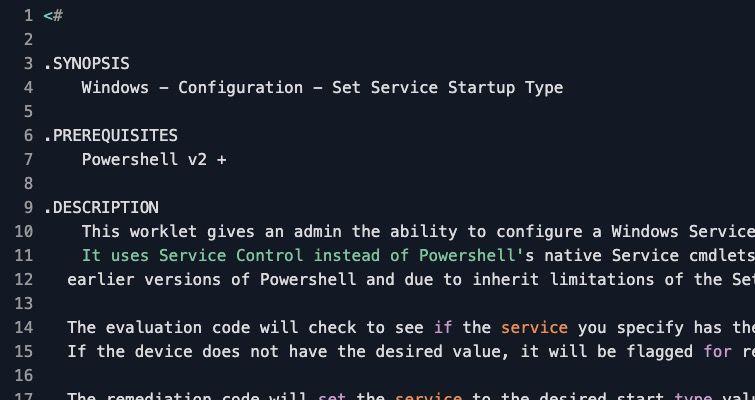
This Automox Worklet™ enforces the startup type of a named Windows service on every endpoint in scope. You set the service name and one of four target states – Automatic, DelayedAutoStart, Manual, or Disabled – and the Worklet rewrites the SCM record on any endpoint where the running START_TYPE has drifted. The script drives sc.exe directly rather than Set-Service, which keeps it working on PowerShell 2.0 hosts and avoids the long-standing Set-Service gap around DelayedAutoStart.
The evaluation script reads the current configuration with sc.exe qc <service>, parses the START_TYPE field, and normalizes the raw values (AUTO_START, AUTO_START (DELAYED), DEMAND_START, DISABLED) to the four policy names. When the current state matches the configured target, the endpoint reports compliant and exits 0. When it does not match, the endpoint is flagged and the remediation script runs.
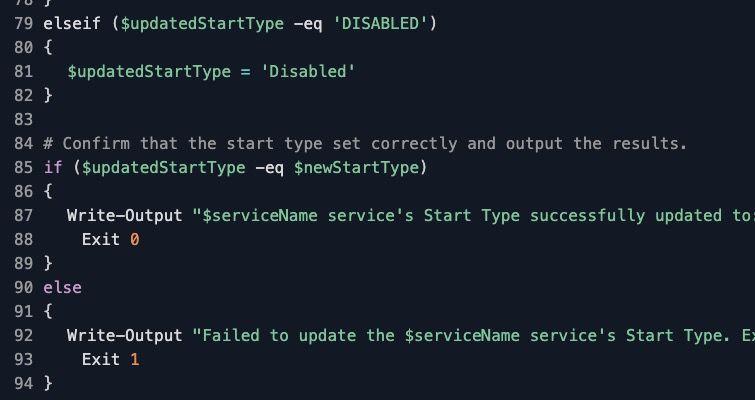
Remediation calls Start-Process sc.exe config <service> start= <auto|delayed-auto|demand|disabled>, then re-queries sc.exe qc to confirm the change applied. The Worklet writes the result to the Automox Activity Log and exits 0 only when the post-run startup type matches the policy target, or exits 1 with the expected and actual values when it does not. A repeat policy run re-evaluates the endpoint and re-applies the configuration if anything (a vendor installer, a GPO refresh, a manual change) has reset it.
Why hold Windows service startup type at a baseline
Service startup state is one of the most consequential controls on a Windows endpoint. Print Spooler running on every server reopens the CVE-2021-34527 PrintNightmare attack path even after the patch is in place. Remote Registry left at Manual on workstations lets an attacker with credentials pull HKLM data across the network. Server service running on a workstation exposes SMB file shares that CIS Benchmark 5.2.46 explicitly calls out as Disabled. On the other side of the ledger, a monitoring agent flipped from Automatic to Manual quietly stops reporting, and the gap shows up months later as a missing endpoint in your SIEM.
Service startup state also drifts in ways that don't surface until the next compliance review. A printer driver install can flip Spooler from Disabled to Automatic on a Server 2019 host with no Group Policy refresh in between. A Windows Update servicing stack rollup occasionally re-enables Remote Registry on workstations. A vendor agent installer rewrites its own start mode on every patch. The Worklet parses sc.exe qc output on every evaluation, compares the START_TYPE field to the configured target, and calls sc.exe config when they diverge. CIS Benchmarks for Windows 10, 11, and Server name specific services that must be Disabled (Xbox Live Auth Manager, Geolocation Service, Remote Registry on servers); NIST 800-53 CM-7 requires the same principle of restricting services to those required for operation. The per-endpoint exit codes become the evidence trail at audit time.
How Windows service startup enforcement works
Evaluation phase: The Worklet runs sc.exe qc <serviceName>, captures the START_TYPE line with a Select-String regex, and maps the raw value (AUTO_START, AUTO_START (DELAYED), DEMAND_START, DISABLED) to the four canonical names (Automatic, DelayedAutoStart, Manual, Disabled). It compares the parsed state to the $newStartType policy value. A match returns exit code 0 and the endpoint is recorded compliant; a mismatch returns exit code 1 with a message naming the current and desired states, which flags the endpoint for remediation.
Remediation phase: The script translates the four policy names to the sc.exe argument set (auto, delayed-auto, demand, disabled) through a hashtable lookup. It launches Start-Process -NoNewWindow -FilePath sc.exe -ArgumentList "config $serviceName start= $scStartType" -Wait, then re-runs sc.exe qc to read the post-change state. When the new state matches the target, the Worklet writes a success line to the Automox Activity Log and exits 0. When it does not, the Worklet writes a failure line with the expected and actual values and exits 1, surfacing the failure in policy results rather than masking it.
Service startup enforcement requirements
Windows 10, Windows 11, or Windows Server 2016 / 2019 / 2022 (the Worklet runs on any supported Windows endpoint where sc.exe is present, which is every modern build)
PowerShell 2.0 or later (the script intentionally avoids Set-Service and the newer cmdlets so it runs on legacy hosts)
Administrator privileges on the endpoint – the Automox agent runs as SYSTEM by default, which already meets this
Set $serviceName in both evaluation.ps1 and remediation.ps1 to the short service name as shown in services.msc (for example: Spooler, RemoteRegistry, wuauserv, WinRM, lanmanserver)
Set $newStartType to exactly one of Automatic, DelayedAutoStart, Manual, or Disabled – any other value falls through the sc.exe hashtable and the policy run fails
Confirm the target service exists on every endpoint in scope; sc.exe qc returns an error rather than a START_TYPE line when the service is not installed, which the evaluation script treats as non-compliant
Expected Windows service state after enforcement
After a successful remediation run, sc.exe qc <serviceName> on the endpoint returns the configured START_TYPE: AUTO_START for Automatic, AUTO_START (DELAYED) for DelayedAutoStart, DEMAND_START for Manual, or DISABLED for Disabled. The behavior on the next reboot follows the configured state: Automatic services start during boot before user login, DelayedAutoStart services launch after the auto-start group to reduce login contention, Manual services stay stopped until something explicitly starts them, and Disabled services refuse to start under any caller until the policy is changed.
Validate from PowerShell with Get-Service <serviceName> | Select-Object Name, Status, StartType, or from cmd with sc qc <serviceName> and look at the START_TYPE line. The Automox Activity Log records the post-remediation result for every policy run, giving you a per-endpoint audit trail for CIS Benchmark or PCI-DSS evidence. Schedule the policy on a recurring cadence – daily for high-drift services like Spooler, weekly for stable baselines – so the next evaluation catches any drift caused by a Windows Update, a vendor installer, or an admin change before the gap is exploited or surfaces in the next audit.
Loading...
Consider Worklets your easy button
What's a Worklet?
A Worklet is an automation script, written in Bash or PowerShell, designed for seamless execution on endpoints – at scale – within the Automox platform. Worklets deploy named-CVE mitigations within hours of disclosure, perform configuration, remediation, and install or remove applications and settings across Windows, macOS, and Linux.

AUTOMOX + WORKLETS™
Supercharge your endpoint management
Uncover new possibilities with simple, powerful automation.
By submitting this form you agree to our Master Services Agreement and Privacy Policy