Install Latest Zoom
Install the Zoom Meetings client on macOS endpoints where it is missing, sourced from the Automox software catalog
Worklet Details
What the Zoom deployment Worklet does
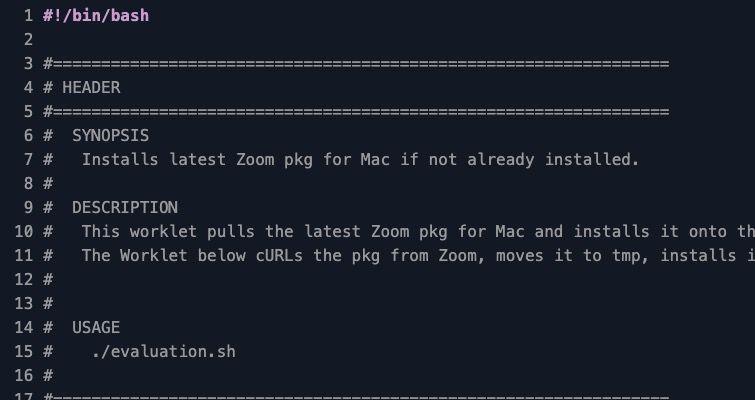
This Automox Worklet™ installs the Zoom Meetings client on macOS endpoints where it is missing. The evaluation script checks for the /Applications/zoom.us.app bundle. If the bundle exists, the endpoint is reported compliant regardless of the installed Zoom version. If the bundle is absent, the endpoint is flagged for remediation.
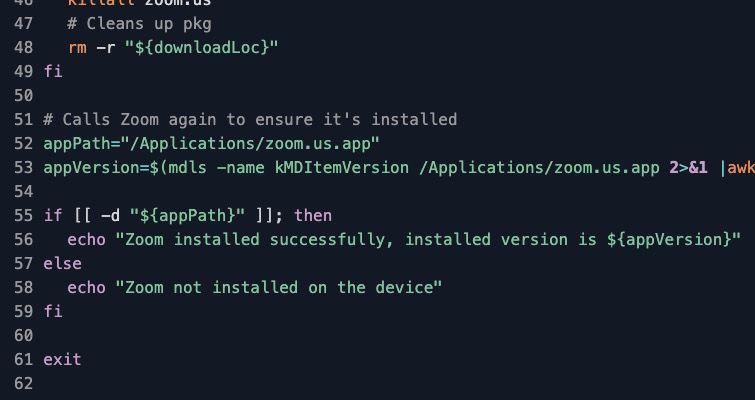
The remediation script downloads the signed Zoom PKG through the Automox software catalog using the agent's wdk ottopm helper, runs /usr/sbin/installer with the root target, and then runs killall zoom.us so the client does not launch on the user's screen mid-session. After the install completes, the script re-checks /Applications/zoom.us.app and reads kMDItemVersion through mdls, then writes that version into the Automox activity log for per-endpoint audit evidence.
This Worklet is scoped to missing-install recovery and greenfield deployment. Because the evaluation only checks for the bundle, it does not flag endpoints that have an older Zoom build, and a recurring schedule will not upgrade existing installs. Pair it with a separate update Worklet or rely on Zoom's in-app updater when you need to drive version upgrades across the fleet.
Why deploy Zoom from a managed runtime
Zoom is a business-critical meeting client on most Mac fleets. When the bundle is missing or partially uninstalled, the user falls back to the browser meeting client and typically files a help-desk ticket. Self-service installers cover the first install but break down on Macs that get wiped and reimaged, restored from old backups, or handed off between users without IT in the loop.
Running this Worklet on a recurring policy keeps the install footprint reconciled. Endpoints that report missing on the evaluation cycle pick up the catalog PKG on the next remediation window, with no MDM push per laptop and no end-user prompts. The agent pulls the package through wdk ottopm, which sources it from the Automox software catalog, so you stay on a signed installer that Automox tracks rather than scraping the Zoom download URL directly from a script.
How the Zoom install runs end to end
Evaluation phase: The script checks whether /Applications/zoom.us.app exists. If the directory is present the endpoint is reported compliant and the script exits 0. If the bundle is absent the script exits 1, which flags the endpoint as non-compliant and queues it for remediation. The evaluation does not read or compare Zoom versions.
Remediation phase: The script first re-checks /Applications/zoom.us.app and exits 0 if Zoom is already installed. When the bundle is missing, it calls /usr/local/bin/wdk ottopm download Zoom to fetch the signed PKG through the Automox software catalog, then parses the downloaded file path from the JSON output. It runs /usr/sbin/installer -pkg <downloaded-path> -target / under the agent's root context, runs killall zoom.us so the client does not steal focus, re-verifies /Applications/zoom.us.app, and writes the installed kMDItemVersion to the activity log.
Zoom deployment requirements
macOS endpoint with the Automox agent installed and able to reach the Automox software catalog
Automox agent version that ships /usr/local/bin/wdk with the ottopm download helper (current production agents satisfy this)
Approximately 300 MB of free disk space in /Applications for the installed Zoom bundle plus temporary space for the staged PKG
Automox agent running with root privileges so /usr/sbin/installer can write to /Applications (the default agent context already satisfies this)
Zoom account for end users to sign in after the client is deployed (this Worklet does not provision accounts)
Expected state after the Zoom install runs
On a successful run, /Applications/zoom.us.app is present and the zoom.us process is not running because the post-install killall fired before the user could see the client launch. The Automox activity log shows a final line of the form Zoom installed successfully, installed version is X.Y.Z that you can grep across the fleet for inventory evidence.
Validate from a terminal on a sample endpoint by running ls /Applications/zoom.us.app, then mdls -name kMDItemVersion /Applications/zoom.us.app to confirm the version. For fleet evidence, export the Automox activity log for the policy run and filter to the installed-version log line; the count should match the number of endpoints that started the run without Zoom installed.
On the next evaluation cycle, every endpoint that was remediated reports compliant and the Worklet takes no further action. Endpoints that were already on an older Zoom build at the start of the run remain on that build, since the evaluation only checks for bundle presence. Use Zoom's in-app updater or a dedicated Zoom-upgrade Worklet to roll those endpoints forward to a newer client.
Loading...
Consider Worklets your easy button
What's a Worklet?
A Worklet is an automation script, written in Bash or PowerShell, designed for seamless execution on endpoints – at scale – within the Automox platform. Worklets deploy named-CVE mitigations within hours of disclosure, perform configuration, remediation, and install or remove applications and settings across Windows, macOS, and Linux.

AUTOMOX + WORKLETS™
Supercharge your endpoint management
Uncover new possibilities with simple, powerful automation.
By submitting this form you agree to our Master Services Agreement and Privacy Policy