Windows - Configuration - Disable AutoRun
Disables AutoRun on Windows endpoints to block autorun.inf worms and USB-borne malware fleet-wide
Worklet Details
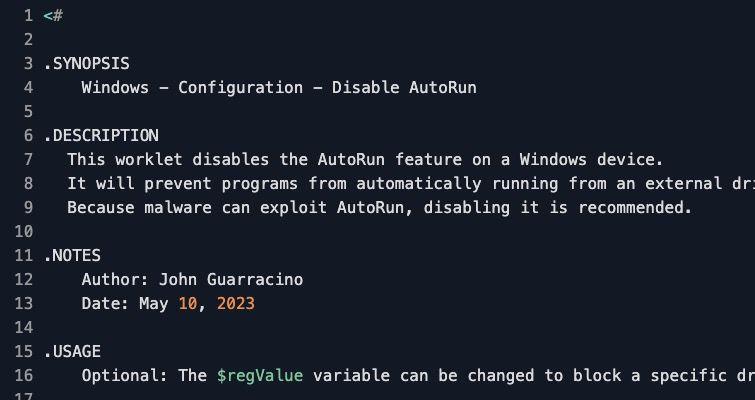
What the AutoRun disabler does
This Automox Worklet™ disables AutoRun on Windows endpoints by writing the NoDriveTypeAutoRun policy value at HKLM:\Software\Microsoft\Windows\CurrentVersion\Policies\Explorer. AutoRun is the legacy Windows behavior that executes autorun.inf instructions and launches programs from removable media, fixed drives, network shares, CD-ROM drives, and RAM disks the moment a drive becomes available to the operating system.
The Worklet sets NoDriveTypeAutoRun to a Dword value of 255 (0xFF), which suppresses AutoRun across every drive class Windows recognizes. The default 255 setting is the value referenced by the CIS Benchmark for Microsoft Windows under the policy "Turn off AutoPlay" and is the catch-all configuration recommended for any endpoint that handles user-supplied media. The script does not modify per-user HKCU settings, so the policy applies at the machine scope and survives user logoff.
Because evaluation is idempotent, the policy can run on a recurring cadence to catch any tool, OEM image, or legacy installer that re-enables AutoRun. The remediation phase only writes the registry value when evaluation reports a mismatch, so the Worklet is safe on already-compliant endpoints and stays silent when there is nothing to do.
Why disable AutoRun on Windows endpoints
AutoRun is the path Conficker, Stuxnet, and other autorun.inf worms used to jump from removable media onto domain-joined endpoints without any user interaction beyond plugging in a drive. The vector is still live on Windows 7, Windows 8.1, and Windows Server 2008 R2 through 2012 R2 hosts that have not been hardened, on OEM images that ship with relaxed defaults, and on any endpoint where a Group Policy edit or registry tweak has rolled the setting back. CIS Benchmarks, NIST 800-53 control CM-7, and the DISA STIG for Windows all flag AutoRun as a required hardening item.
This Worklet writes the NoDriveTypeAutoRun value at HKLM:\SOFTWARE\Microsoft\Windows\CurrentVersion\Policies\Explorer with the 0xFF mask that blocks AutoRun on all drive classes (removable, fixed, network, optical, RAM disk). The change is idempotent: endpoints already in the desired state finish in milliseconds, and divergent hosts surface in the activity log with the prior value captured for the change-control record. The same policy holds the setting in place on Windows 7 through Windows 11 and the matching Server SKUs.
How AutoRun disablement works
Evaluation phase: The Worklet reads NoDriveTypeAutoRun from HKLM:\Software\Microsoft\Windows\CurrentVersion\Policies\Explorer using Get-ItemProperty with -ErrorAction SilentlyContinue, which handles the case where the value does not yet exist. If the returned data equals 255, the endpoint is compliant and the script exits 0 with "AutoRun is already disabled. Now exiting." Any other value, including a missing key, returns exit code 1 and flags the endpoint for remediation.
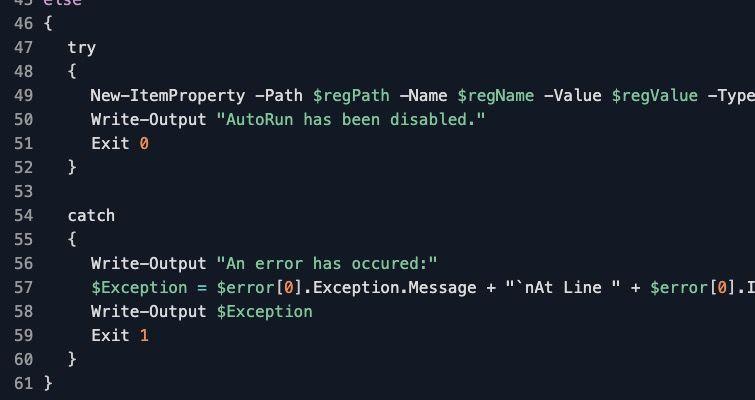
Remediation phase: The Worklet calls New-ItemProperty against the same path to create or overwrite NoDriveTypeAutoRun with -Type Dword and -Value 255. The change is wrapped in a try/catch so any access denial or registry write failure surfaces in Automox activity logs with the exception message and the failing script line number. The policy takes effect on the next Explorer-mediated drive event, so no reboot is required for new media; sessions already mounted may need to be re-inserted to pick up the new behavior.
AutoRun disablement requirements
Windows 7, Windows 8.1, Windows 10, or Windows 11 workstation, or Windows Server 2008 R2 through 2022
Automox agent running with SYSTEM context, which already meets the HKLM write requirement
PowerShell 3.0 or later (default on all in-support Windows builds)
Optional: change the $regValue variable inside the script from 255 to a narrower mask (1, 4, 8, 0x10, 0x20, 0x40) if the policy should leave specific drive classes alone
No reboot required; the change is read by Explorer on the next drive enumeration
Compatible with FixNow for one-click remediation against a single endpoint or an ad-hoc group
Expected AutoRun policy state after remediation
After the Worklet runs, HKLM:\Software\Microsoft\Windows\CurrentVersion\Policies\Explorer contains a Dword named NoDriveTypeAutoRun set to 255 (decimal) or 0xFF (hex). The next evaluation finds the value and exits 0 without re-applying the change. Inserting a USB drive, mounting an ISO, or attaching a CD no longer triggers autorun.inf parsing or the AutoPlay launch prompt that some malware families have used as a social-engineering bridge.
Validate by running Get-ItemProperty -Path 'HKLM:\Software\Microsoft\Windows\CurrentVersion\Policies\Explorer' -Name NoDriveTypeAutoRun in an elevated PowerShell session and confirming the returned value is 255. For audit evidence, capture the registry export with reg query "HKLM\Software\Microsoft\Windows\CurrentVersion\Policies\Explorer" /v NoDriveTypeAutoRun and store it with the Automox policy run identifier. Users can still open files manually from removable media; only the automatic launch path is closed. Legacy installers that depended on AutoPlay to bootstrap will require an explicit double-click on setup.exe, which is the intended trade-off for the security gain.
Loading...
Consider Worklets your easy button
What's a Worklet?
A Worklet is an automation script, written in Bash or PowerShell, designed for seamless execution on endpoints – at scale – within the Automox platform. Worklets deploy named-CVE mitigations within hours of disclosure, perform configuration, remediation, and install or remove applications and settings across Windows, macOS, and Linux.

AUTOMOX + WORKLETS™
Supercharge your endpoint management
Uncover new possibilities with simple, powerful automation.
By submitting this form you agree to our Master Services Agreement and Privacy Policy